

AJICA + CODEX
A task board for your Codex workflow.
Keep the work visible while Codex works in your repository. Ajica gives each task a brief, a progress trail and a place for the decisions that need you.
Task management that outlasts a chat.
A terminal conversation is useful for solving a problem. The board keeps the work around that conversation: what you asked for, which repository it belongs to, what is waiting on you and what the agent checked before finishing.
Give Codex a bounded task
Put the intended change and acceptance criteria on a card. Choose a small first task with an outcome you can inspect.
Keep decisions with the work
When a requirement is missing, Codex can pause and ask on the task. Your answer stays next to the brief.
Ask for evidence
Progress explains activity. Test output, a diff and a completion summary explain the result.
Connect local Codex CLI to Ajica
Bootstrap, MCP transport and hook setup checked on 2 November 2026 with Ajica 0.2.50.
Start with one repository
Run Ajica on your Mac or your own Linux server. Install and sign in to Codex CLI separately using OpenAI’s instructions. Open the repository you intend to work in; the examples below use Ajica’s default local address, http://127.0.0.1:7331.
OpenAI’s Codex CLI guide1. Get the setup from your running Ajica
Run this in your repository and read the returned instructions. They include your installation’s MCP command and the complete Ajica skill bundle. Install every listed skill file under .agents/skills/ajica, including its references. Review the commands before running them.
cd /path/to/your/project
curl -fsS "http://127.0.0.1:7331/connect?client=codex"
Codex discovers repository skills in .agents/skills. The Ajica skill defines project selection, task claims, progress, questions and checks. If your repository has AGENTS.md, keep its existing rules and reference .agents/skills/ajica/SKILL.md there.
OpenAI’s local skills documentation
2. Add the MCP entry
Merge the entry into your project’s .codex/config.toml. Codex loads project configuration for trusted projects. Keep existing settings, and use the exact command from your Ajica setup output. This is a Mac example for the standard app location; Linux installations have a different executable path.
[mcp_servers.ajica]
command = "/Applications/Ajica.app/Contents/Resources/ajica-hook/ajica-hook"
args = ["mcp"]

[mcp_servers.ajica.env]
AJICA_BASE_URL = "http://127.0.0.1:7331"
AJICA_AGENT_SLUG = "codex"
Keep args as ["mcp"]. Ajica selects the project by its canonical folder; you do not pin a project ID in this entry. Review machine-specific paths before sharing the file. Credentials stay out of the repository.
OpenAI’s MCP configuration documentation
3. Approve this agent in Ajica
On Mac, Ajica’s “Install CLI tool (ajica)” menu item makes ~/.local/bin/ajica available. If the agent is not enrolled, run the command below from the repository and approve the exact user code in Ajica. Enrollment stores the credential locally without asking you to paste a token into the project.
~/.local/bin/ajica enroll --slug codexUse the same credential-storage slug for enrollment, AJICA_AGENT_SLUG and optional hooks. These examples use codex. Reuse an existing configured identity consistently if you already have one.
Linux CLI equivalent
Use the path to the Ajica server binary you installed. If it is available on PATH as ajica-server, the enrollment command is:
ajica-server enroll --slug codex4. Verify the connection before editing
Start or restart Codex in this repository. Use /mcp to check that ajica is connected. Ask the agent to read the Ajica skill, resolve the intended project and attach this existing session before claiming work. A session you start yourself should be registered before the board tries to launch another CLI for the task.
One task, one decision, one reviewable result
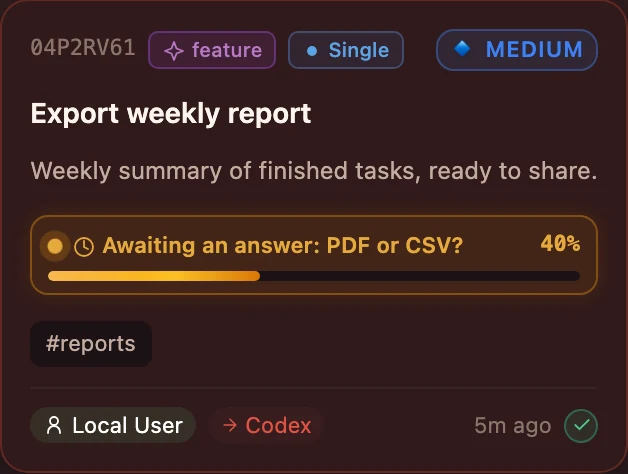
Use a small coding task to check the whole workflow. Here is an example for your application’s reporting page, illustrated by the demonstration card above.
EXAMPLE CODING TASK
Export the weekly report
Add an export action to the reporting page. Export only the rows covered by the active filters. Agree the output format before writing the exporter. Keep the current filter state unchanged, run the relevant checks and record the result on the task.
Read and claim the card
Create the task in the connected project. Give its ID to your existing Codex session and ask it to follow the Ajica skill. The agent claims the card before changes and, when using the Codex hook workflow, explicitly binds the session to that task.
Read .agents/skills/ajica/SKILL.md. Resolve this project and attach this existing session. Read and claim TASK_ID before editing. Ask me which export format to use, keep changes within the task, and report the checks and final diff summary in Ajica.
Answer the missing requirement
When Codex asks “PDF or CSV?”, answer on the task. For example: “CSV, with the existing columns and active filters. Include a check for an empty report.” That answer becomes part of the task’s context.
Implement and check the change
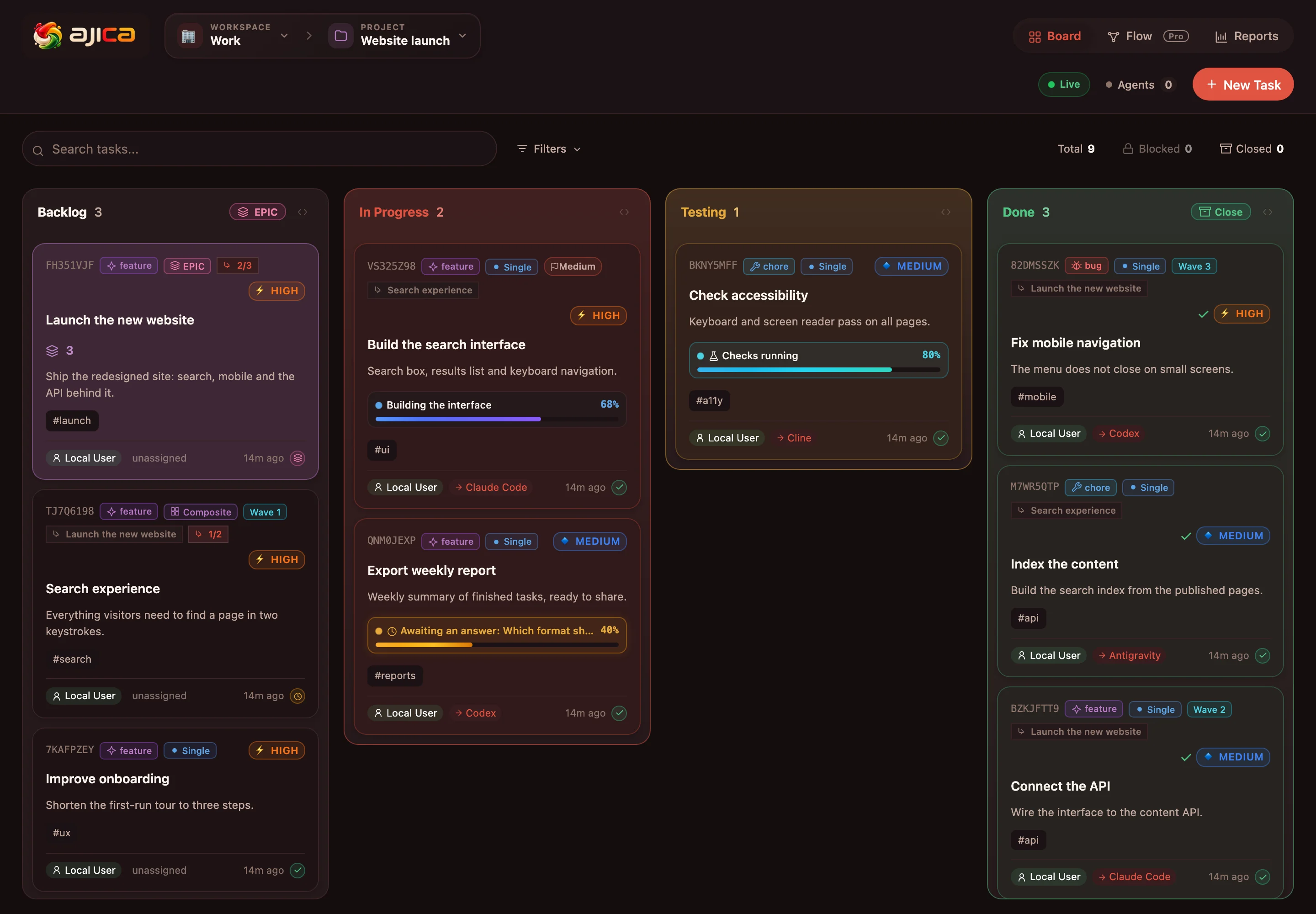
Codex reports progress, then moves the task to Testing for the relevant project checks. A failed check sends the work back to In Progress. Ask for the actual results, including any checks the environment could not run.
Review the deliverable
Inspect the code diff, a sample exported file and the test output. The completion summary should explain what changed and any remaining limits. Merge or deploy according to your repository’s own process.
Optional: keep the session connected with hooks
Ajica’s Codex hooks supplement the skill and MCP tools with session activity and task-input delivery. Preview the definitions first. Install them only after review; the command writes project-local .codex/hooks.json and an ownership record in .ajica, preserving unrelated handlers.
~/.local/bin/ajica codex-hooks-config --root . --agent-slug codex
~/.local/bin/ajica codex-hooks-config --root . --agent-slug codex --action install
Review the exact definitions in Codex /hooks. Installing files does not grant trust. Add --require-task to both commands if you want Ajica’s guard to require a claimed and bound task for supported writes; the guard never claims a task for you. On Linux, replace the Mac CLI path with your installed server executable.
The Ajica hook contract has a codex-cli 0.149.1 baseline. Check compatibility and trust for your installed client, particularly desktop clients. Hooks cannot wake an idle conversation: new task input arrives at a supported safe point. Ending a turn or passing a check does not automatically complete the task.
Connection help and questions
Ajica does not appear in /mcp
Check that Ajica is running, the MCP executable exists and the configured address matches the board. Confirm you started Codex in the intended repository, reviewed project trust and kept the TOML entry under mcp_servers.ajica. Restart after changing the MCP configuration.
The agent can connect but cannot access this project
Use the same enrollment slug as the MCP entry and resolve the canonical project folder. Review any registration or project-access request in Ajica. A successful MCP connection does not grant access to every project on the server.
Why has my answer not reached an idle session?
Task input is delivered at supported session activity points. Send the next prompt in the Codex session if it is idle, or ask the agent to pull pending task inputs explicitly. Keep the decision on the card so the working context is preserved.
What about desktop or cloud Codex sessions?
This walkthrough targets local Codex CLI. Supported local Codex clients can share MCP configuration, while the hook examples require their own compatibility check. A cloud session has a different network environment; your Mac’s 127.0.0.1 address is local to that Mac.
Does Ajica include Codex usage?
Ajica Community includes local task management and MCP access. Codex authentication, model access and usage charges are separate from Ajica. Compare Ajica plans for Pro features and use OpenAI’s current documentation for Codex access.
Compare Ajica plansDo hooks approve tools or finish tasks for me?
Hooks do not grant Codex tool permissions. Task completion remains explicit: the agent follows the skill and records its result. Keep your client’s permission controls and your project’s checks and review process in place.
Put your next Codex task on the board.
Connect one repository, give Codex a task you can verify, and keep the decisions and results together.